Set up your spreadsheet
Use Excel, Numbers or Google Sheets. Add columns for producer, wine, vintage, quantity, cellar and storage location. You can add purchase dates, prices and personal notes if you want them.
If you already keep a list, save a copy before changing it. Use a separate row for each wine, vintage and location, and add filters so you can find a bottle quickly.
Count the bottles in front of you
Work through one rack, shelf or case at a time. Record producer, wine, vintage, quantity, cellar and storage location before adding optional purchase details. Leave unknown facts empty instead of guessing a year or a price.
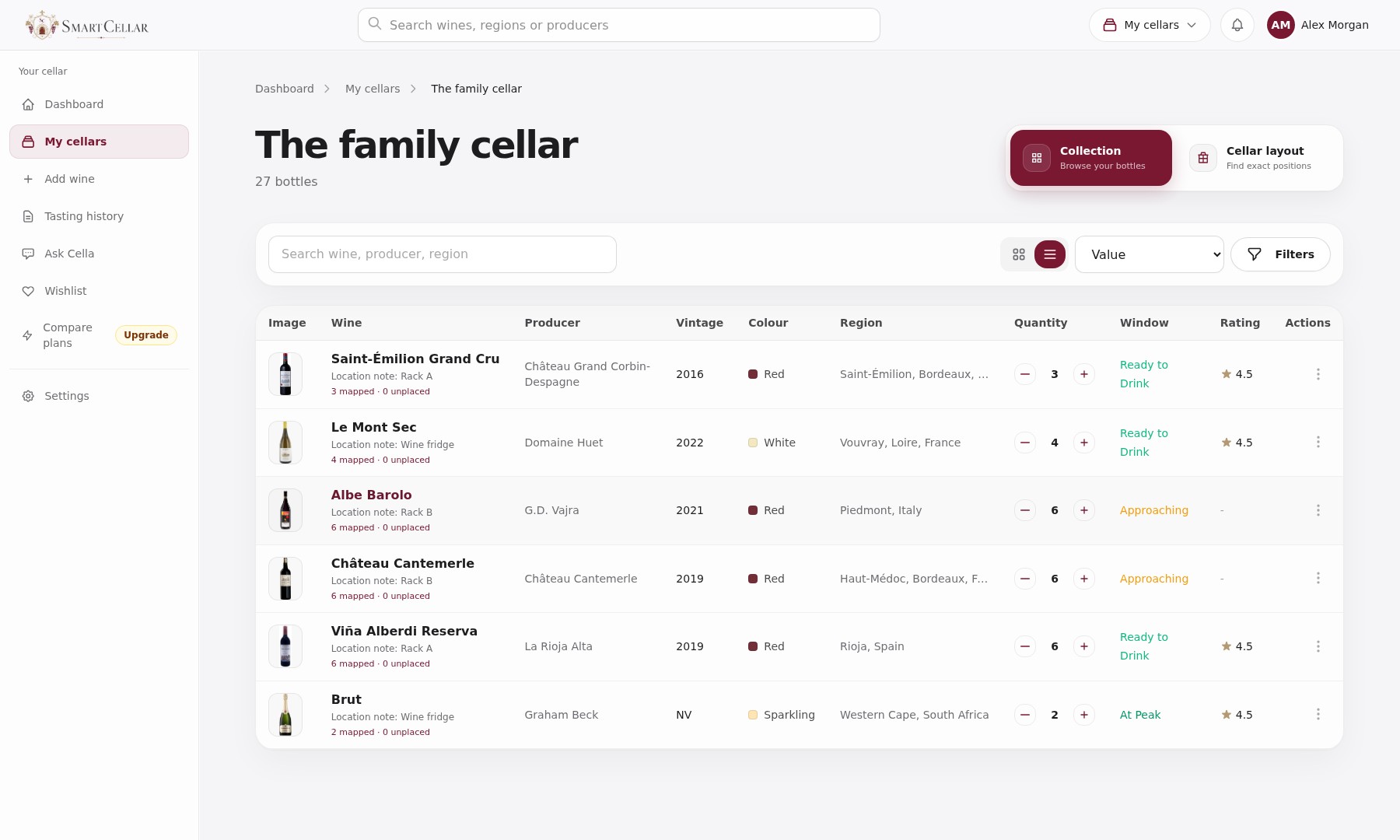
Use a separate row for each wine, vintage and location. If you keep four bottles of 2019 Viña Alberdi in Rack A and two in the wine fridge, use two rows with six bottles between them. A different vintage needs its own row.
- Read the label and confirm the vintage.
- Count bottles at this location.
- Enter the exact shelf, rack or case name.
- Mark the physical section complete before moving on.
Check the totals
Add the quantity column and compare it with the physical count. Sort by producer and vintage to find accidental duplicates. Check whether repeated rows represent different locations before deleting anything.
Try finding three bottles using only the worksheet. If a location is ambiguous, correct the label and the row together. Save a dated backup once the stocktake agrees with the shelf.
Reconcile your SmartCellar records
Compare your physical count with the wine’s saved quantity. If you have already recorded an opening in SmartCellar, do not subtract it again. Check the same wine in other locations before correcting its total.
Correct counts and locations →Download a backup export →
- Open My cellars, choose the cellar and search for the producer and wine. Confirm the vintage.
- Open the wine → Edit details. Enter the total number you actually own in Quantity and update Location note and Notes.
- Choose Save changes. If prompted, select the mapped bottles being removed and retry the quantity change.
- Check the saved total and positions. Repeat for the next wine.
- Once the stocktake agrees with the shelves, open Settings → Account, choose CSV and Export my data. Download and open the ZIP when it is ready.
Choose how to maintain the record
A spreadsheet can work well for a small collection if you update it after deliveries, moves and opened bottles. Assign one person to maintain the master copy, or agree how a shared sheet will be edited.
If you want label scans, tasting notes and drinking-window reminders, you can try SmartCellar with one cellar and up to 50 bottles free.